What gets verified
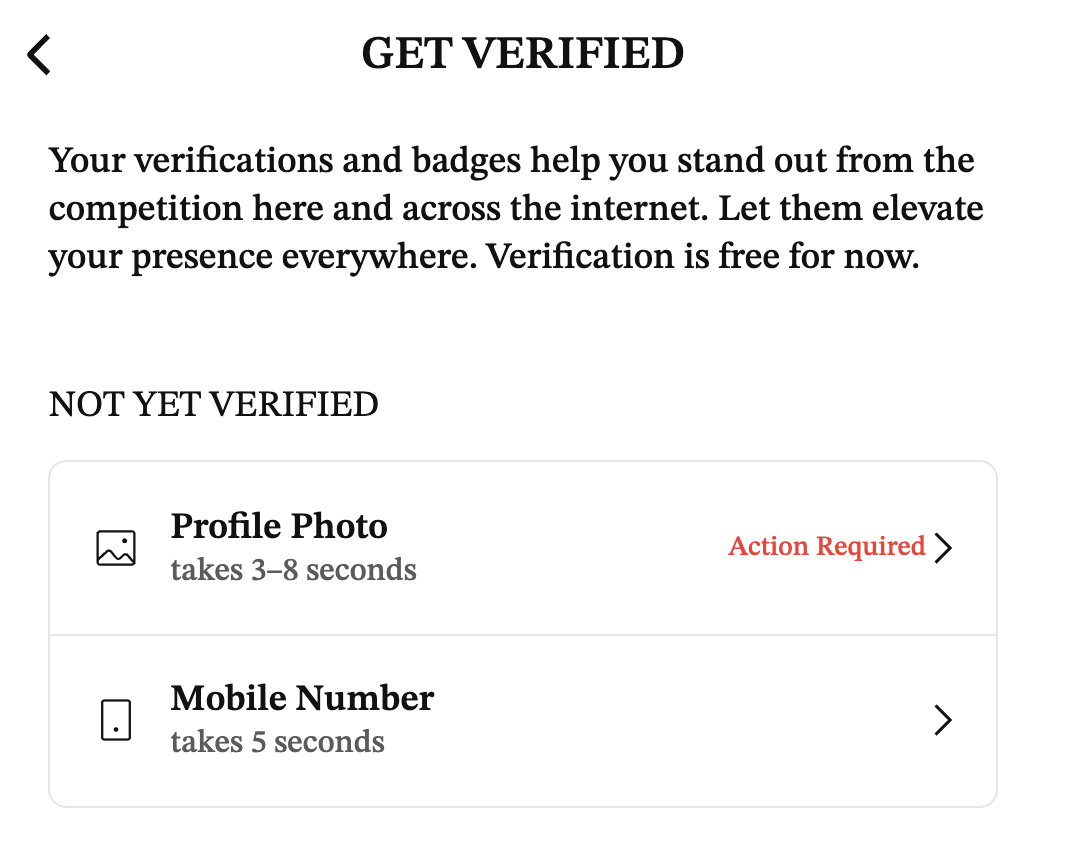
The verification screen lists exactly three items: Profile Photo, Mobile Number, and Email Address. On the account used to research this page, Email Address already showed as verified; how or when that happened wasn’t captured, so treat that one as an observation rather than a description of the steps involved.
The list holds nothing beyond those three. No income check, no government ID upload, no medical or test-result verification sits anywhere on the screen.
How long it takes
Two of the three items carry an on-screen timing, and both describe how long the check itself takes to perform, not how long PositiveSingles takes to review it. Profile Photo takes 3 to 8 seconds, recorded as a short selfie video. Mobile Number takes 5 seconds. Email Address carries no timing on the screen.
Reviewing the photo afterward is a separate step, and slower. To verify a main photo: To verify your main photo, click on ‘Verifications’ located beneath your profile photo in the upper-right corner of the top bar. Next, select ‘MAIN PHOTO’ and click on ‘Verify by Selfie Video’ to begin the quick video verification process. Follow the prompts to complete the verification.
What happens next: We will review to ensure your selfie matches the person in your profile photos, and your verification will be confirmed or rejected within 24 hours.
A different FAQ entry, updated more recently, gives a similar figure in different words: The verification process typically takes one working day, premium members can instantly begin connecting with others.
What it costs
Nothing, for now. The Get verified screen states it directly: Verification is free for now.
That phrasing is the platform’s own hedge, not this site’s guess, and it reads as a policy that could change rather than a permanent guarantee. The live screen is the place to check before assuming it still applies.
What it proves, and what it doesn’t
PositiveSingles is specific about the limits of photo verification: Photo verification helps confirm that the person using an account matches the photos submitted for verification. It is designed to reduce impersonation, stolen-photo accounts, and other misleading profile activity.
Just as specific about what it leaves out: However, photo verification does not confirm a member’s income, occupation, relationship intentions, medical information, criminal history, or the accuracy of every statement in their profile. Members should still take time to build trust, look for consistency, and report suspicious behavior.
Medical information is one of those gaps, and it isn’t a small one on a site built around STI status. PositiveSingles is direct about it: No – PositiveSingles does not require or verify medical records. Membership is based on trust and honesty within the community.
Whatever a member lists as their status on their profile is what they typed in, not something a verification badge has checked.
Verified Members Only
Verification connects to one Settings switch worth knowing about. Turn on Verified Members Only and only verified members can message, like or otherwise interact with you; leave it off and unverified members can still reach out. It’s a way to use other members’ verification status as a filter, separate from getting verified yourself.
If verification fails
PositiveSingles lists specific, fixable reasons a verification doesn’t go through:
- Make sure you have a clear face photo on your profile.
- Make sure that the person in your selfie video matches the person in your profile photos.
- Follow the on-screen instructions and move your camera so your head fits in the circle.
- Make sure your full face is clearly visible and there is enough light.
- Make sure your browser or app has permission to use your camera.
- Check your internet connection and try again.
- Your photo verification will be canceled if you delete all public photos.
The FAQ adds one more note worth knowing before you try: the process uses colored lights, so anyone photosensitive should be cautious. If a rejection still doesn’t make sense after checking all of the above, PositiveSingles’ own advice is to contact support with a screenshot of the error and a short description of what happened.